

Get the app
iOS App
Download ShieldGPS from the Apple App Store for iPhone and iPad.
Android App
Download ShieldGPS from Google Play for Android phones and tablets.
Web Dashboard
Open the web dashboard in your web browser to access your full account from a computer or tablet.
Log in
Use the email address and password you created during activation at shieldgps.co/activate. If you’ve forgotten your password, tap Forgot password on the login screen to reset it via email.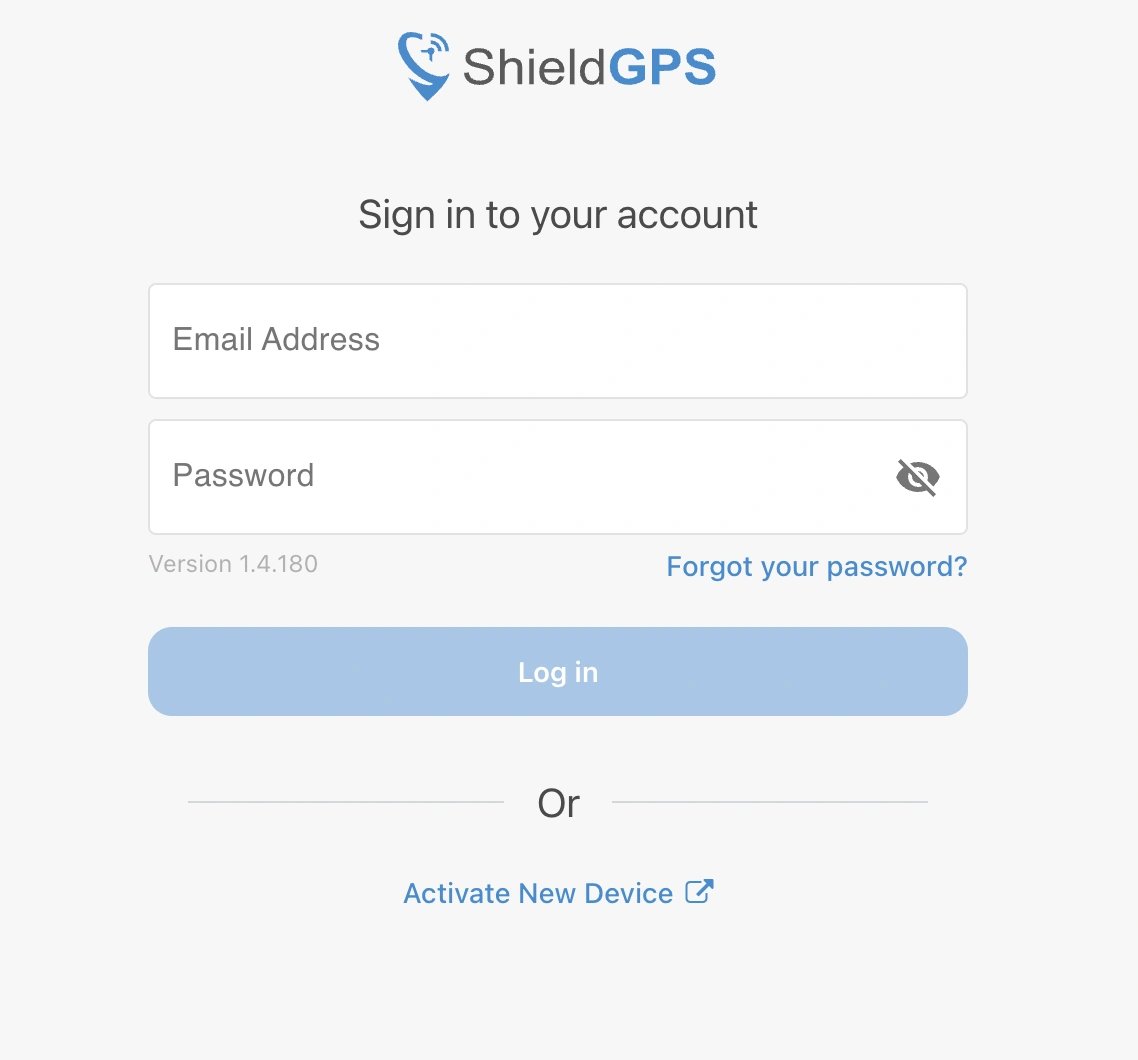
What you’ll see after logging in
Once you’re signed in, you’ll land on the main map view. Here’s what to expect:- Live map — all your active trackers are plotted on an interactive map with real-time position updates every 10 seconds.
- Device list — a scrollable list of all trackers on your account, showing each device’s last known location and status.
- Alert history — a log of triggered alerts, including speed violations and geofence entries and exits.
Your tracker needs power, cellular signal, and a GPS fix before it can report its location. If you haven’t installed it yet, follow your model’s guide next.
Next: install your tracker
Install your tracker
Choose your model for hardware, installation, and power-on instructions. Then return to the app to check its location.