

Alert types
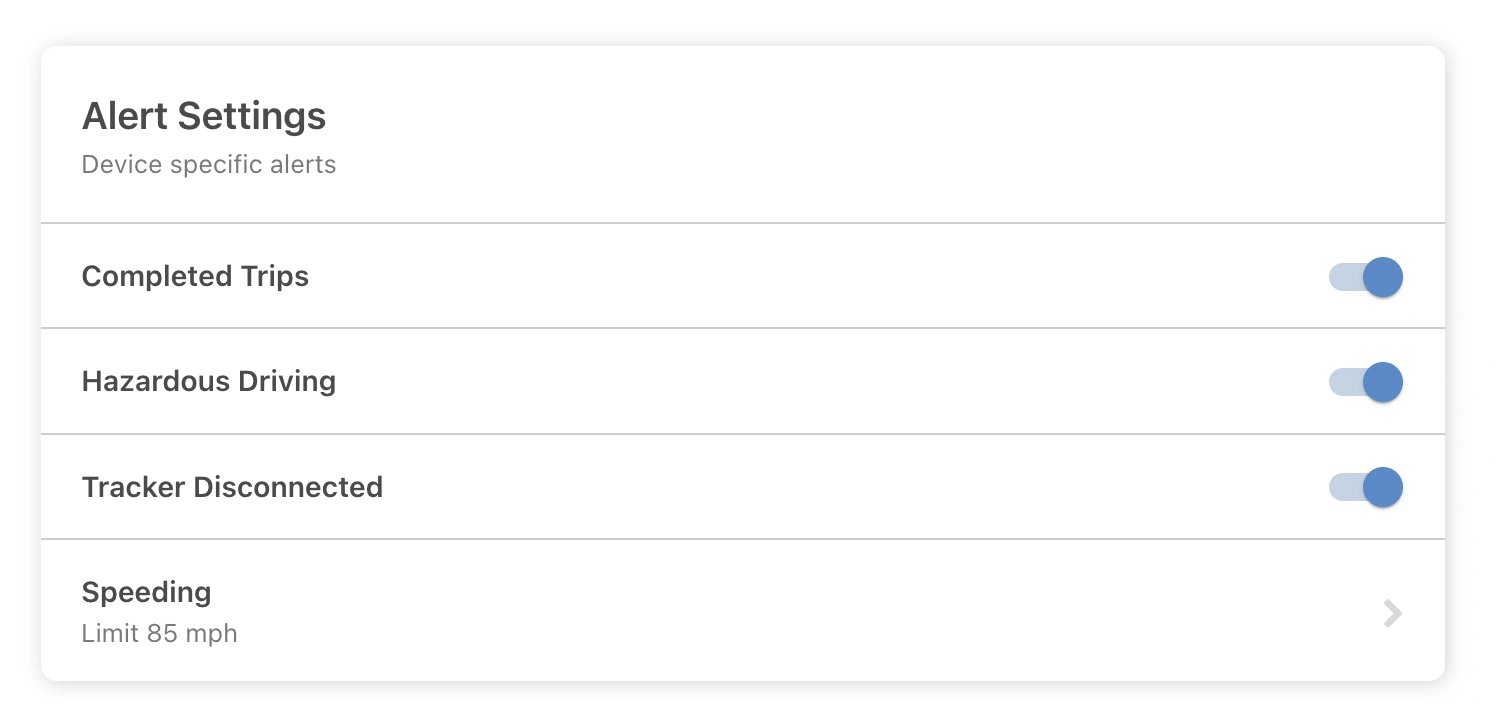
The Alert Settings panel shown above contains these controls:
Configure entry and exit alerts separately when you create or edit a geofence.
Configure your alerts
1
Open the app and select a device
Launch the ShieldGPS app on iOS or Android, or sign in at shieldgps.co/dashboard. Tap the device you want to configure alerts for.
2
Tap 'Alerts' or 'Settings'
On the device detail screen, tap Alerts or navigate to Settings — the exact label varies slightly by platform.
3
Choose your device alerts
In Alert Settings, toggle Completed Trips and Tracker Disconnected on or off.
4
Set a speeding limit
Select Speeding to set the speed limit you want to apply. The tracker sends an alert when it exceeds that limit. You can update the threshold at any time.
Notification methods
Push Notifications
Alerts are delivered directly to your iOS or Android lock screen via the ShieldGPS app — even when the app is running in the background.
In-App Notification Centre
All alerts are logged in the notification centre inside the app and on the web dashboard, so you can review past events at any time.
Push notifications require the ShieldGPS app to be installed and notification permissions granted in your phone’s settings. If you are not receiving notifications, go to your phone’s Settings → Apps → ShieldGPS → Notifications and make sure they are enabled.