

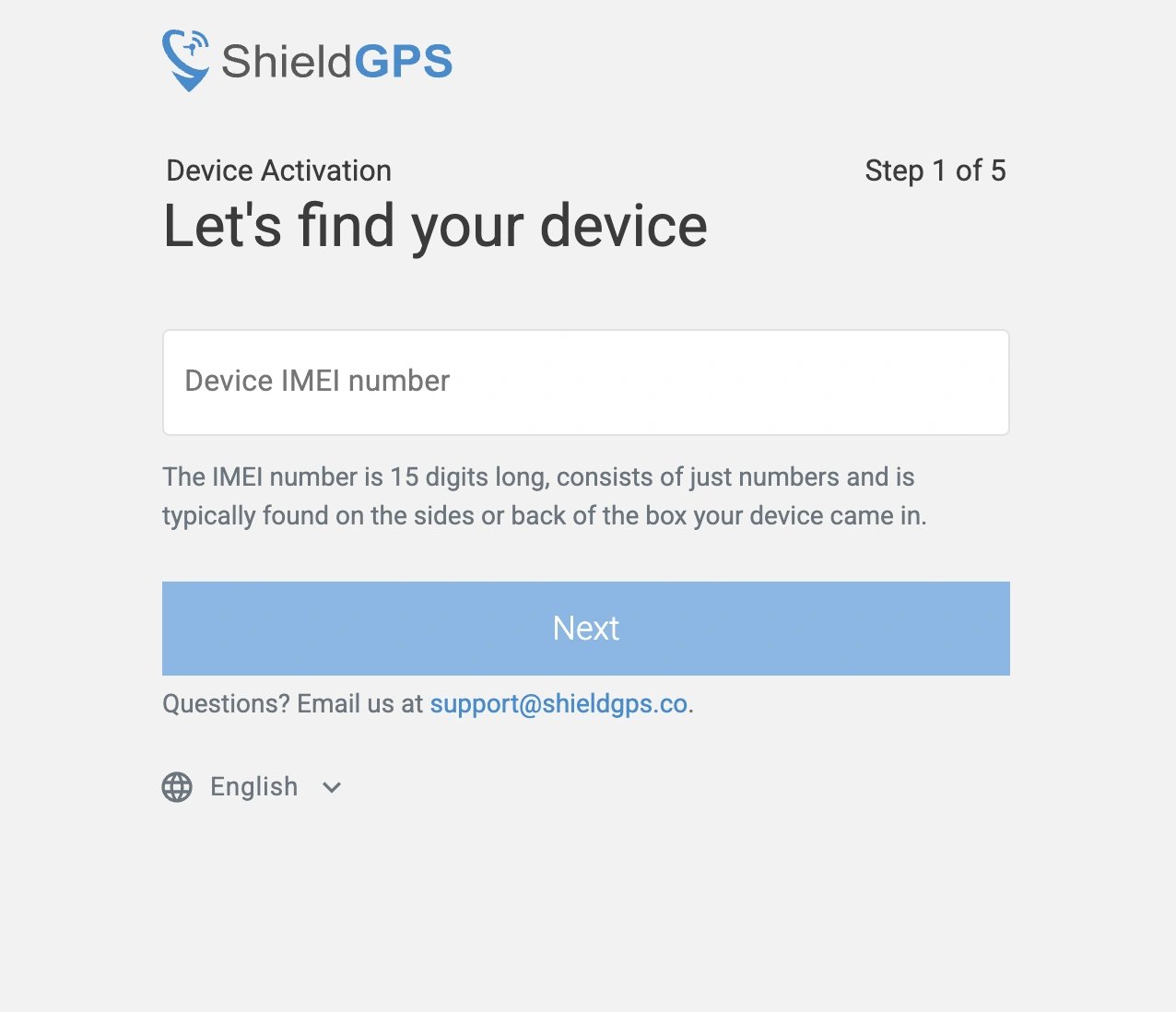
Before you begin, make sure you have the following ready:
- Your device — have the tracker physically in hand or nearby.
- Your IMEI number — the 15-digit number printed on your device packaging.
- An email address — used to create or log in to your ShieldGPS account.
Activation steps
1
Visit the Activation Portal
Open a browser and go to shieldgps.co/activate. This is the only place where new devices are registered.
2
Enter Your 15-Digit IMEI Number
Type the IMEI number exactly as it appears on your device packaging. The IMEI is 15 digits long — double-check each digit to avoid activation errors.
3
Create or Log In to Your ShieldGPS Account
If you’re a new customer, enter your email address and create a password to set up your account. If you’ve activated a device before, log in with your existing credentials.
4
Choose a Subscription Plan
Select the subscription plan that suits your needs. All plans include live tracking, route history, geofences, and access to the iOS, Android, and web apps.
5
Complete Payment
Enter your payment details and confirm your order. Your device activates immediately — no waiting period required.
Each ShieldGPS device requires its own active subscription. If you have multiple trackers, repeat the activation process for each one. All devices appear on the same account with no limit on how many you can add.
Next: download the app
After activation, download the app and sign in with the same account. You can check your tracker’s location after you install and power it on.Download the app
Get ShieldGPS for iOS or Android, or use the web dashboard.