

Create a Geofence
1
Open the app and select a device
Launch the ShieldGPS app on iOS or Android, or sign in at shieldgps.co/dashboard. Tap the device you want to set the geofence for.
2
Enter geofence editor mode
On the web dashboard, click the geofence editor button — the map pin with a pencil — on the right side of the map. In the mobile app, open the device details and tap Geofences.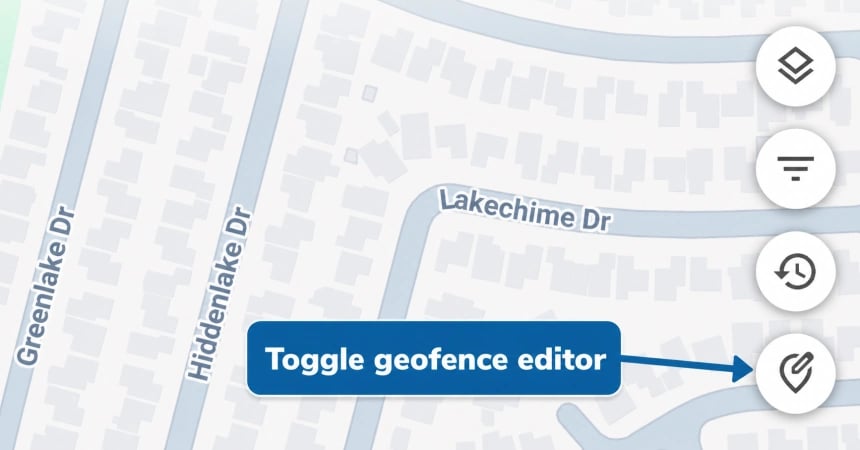
3
Tap 'Add'
Tap the Add or + button to start creating a new zone.
4
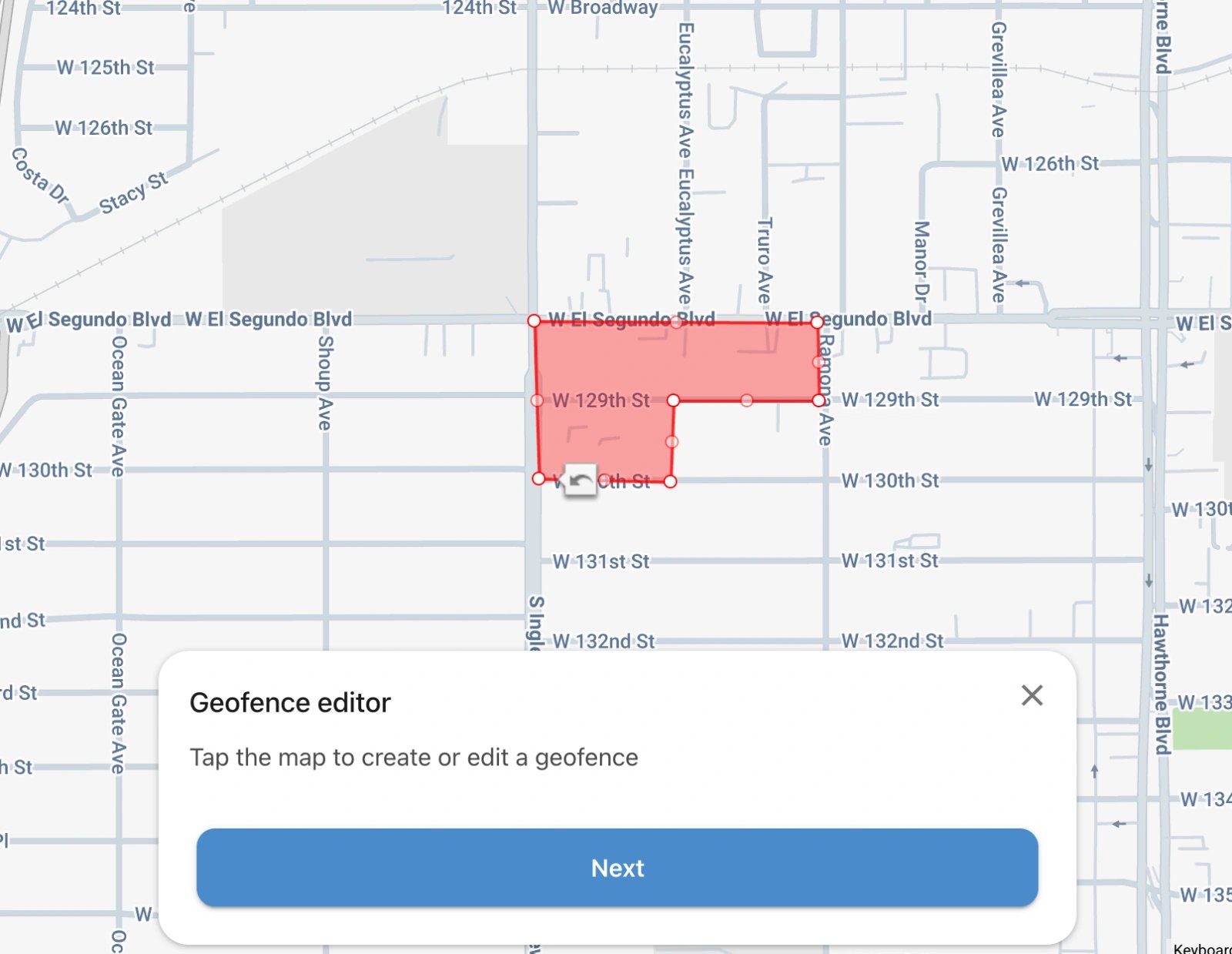
Draw or place the zone on the map
Pan and zoom the map to your desired location. You can draw a custom polygon around an area or drop a circular zone and drag the radius handle to set the size.
5
Name the geofence
Give the zone a clear, descriptive name — for example, Home, Warehouse, or School.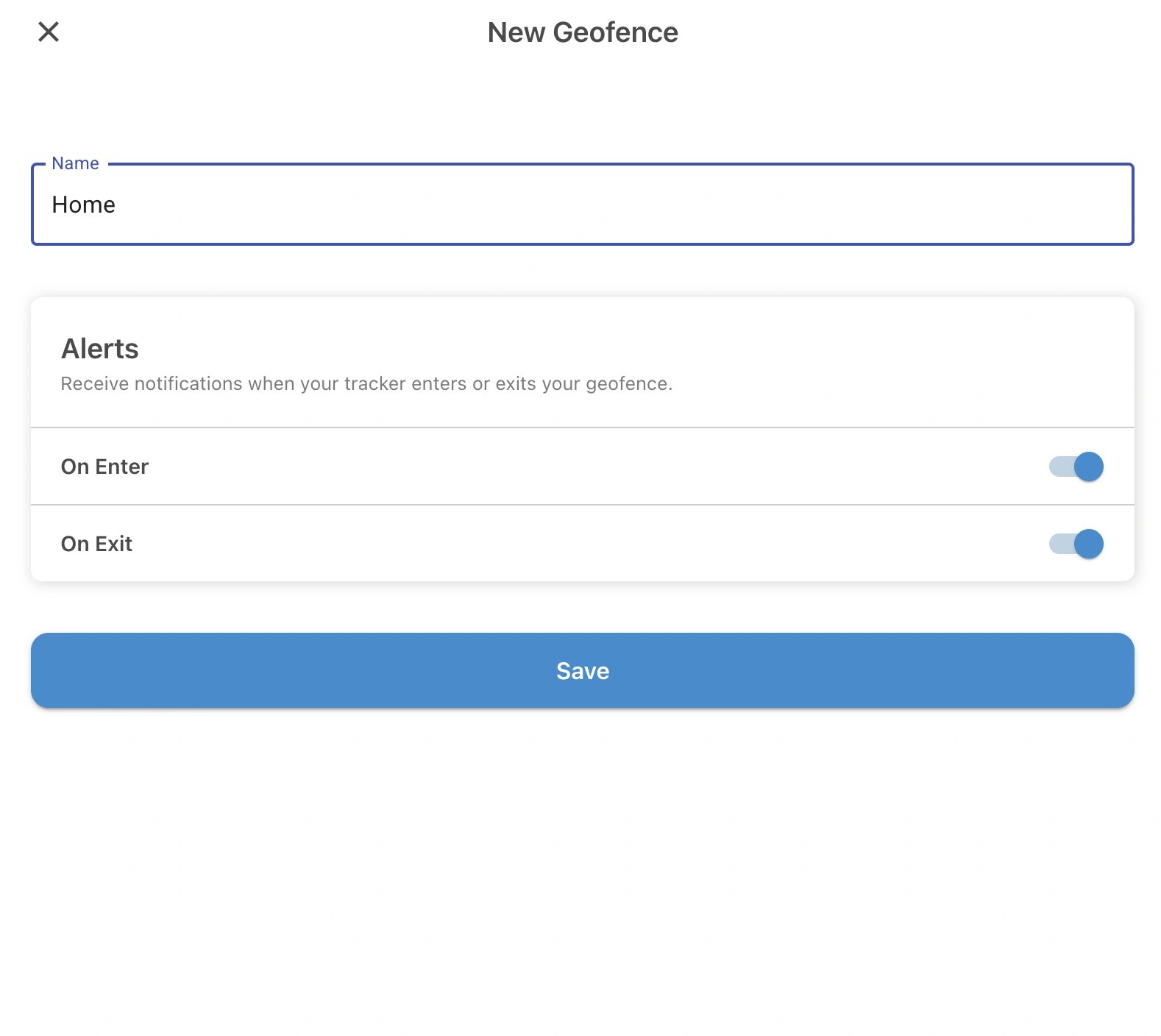
6
Choose your alert triggers
Select one or more trigger types:
- Entry alert — notify me when the tracker enters this zone
- Exit alert — notify me when the tracker leaves this zone
- Both — notify me on entry and exit
7
Save
Tap Save. The geofence is now active and will start monitoring straight away.
Edit or Delete a Geofence
To change an existing geofence, go to Geofences for the relevant device, tap the geofence name, and select Edit. You can resize the zone, move it, rename it, or change the alert triggers. To remove a geofence entirely, tap Delete from the same screen.Multiple Geofences
You can have as many geofences active at the same time as you need — there is no limit per device. Each geofence operates independently, so you can set different triggers for different zones on the same tracker.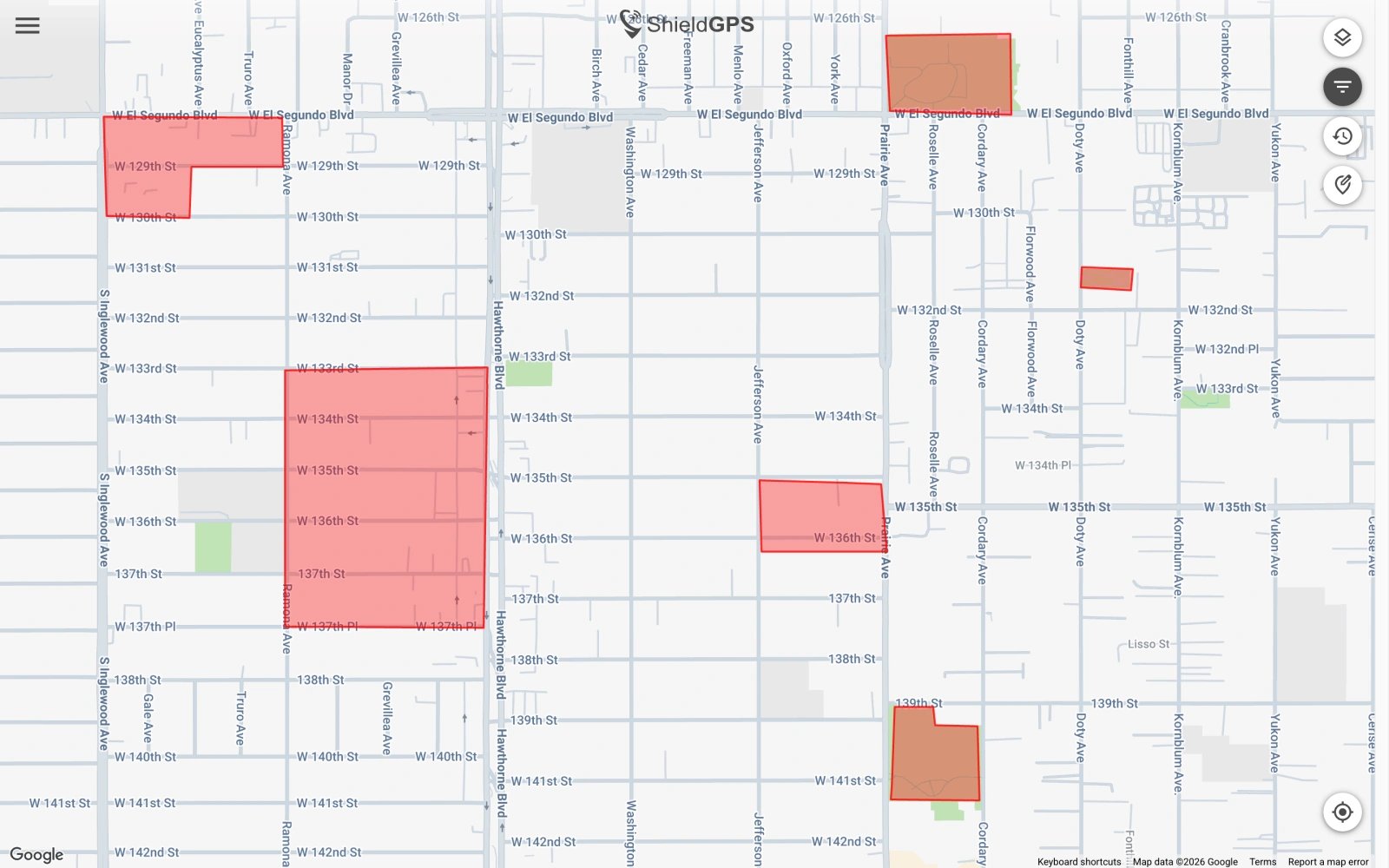
Common Uses
Home or Office
Know the moment a vehicle leaves your property outside of expected hours.
School or Nursery
Confirm when a child or vehicle arrives at and departs from a school zone.
Warehouse or Depot
Monitor assets entering and leaving your storage or distribution site.
Job Site
Track when equipment or vehicles arrive at or leave a work site.
Notification Delivery
When a geofence trigger fires, ShieldGPS delivers an alert in the following ways:- Push notification — sent to your iOS or Android device via the ShieldGPS app
- In-app alert — visible in the notification centre within the app and web dashboard