> ## Documentation Index
> Fetch the complete documentation index at: https://docs.shieldgps.com/llms.txt
> Use this file to discover all available pages before exploring further.
# Live GPS Tracking: See Your Tracker's Location Now
> ShieldGPS updates your tracker's location every few seconds (frequency depends on your device's plan), accurate to a few metres, so you always know exactly where your asset is.
ShieldGPS uses 4G LTE networks to update your tracker's position every 10 seconds, accurate to a few metres. Whether you're monitoring a vehicle, a piece of equipment, or a loved one, the live map gives you a constant, real-time picture of where your tracker is — at any moment of the day.
 ## View Your Live Location
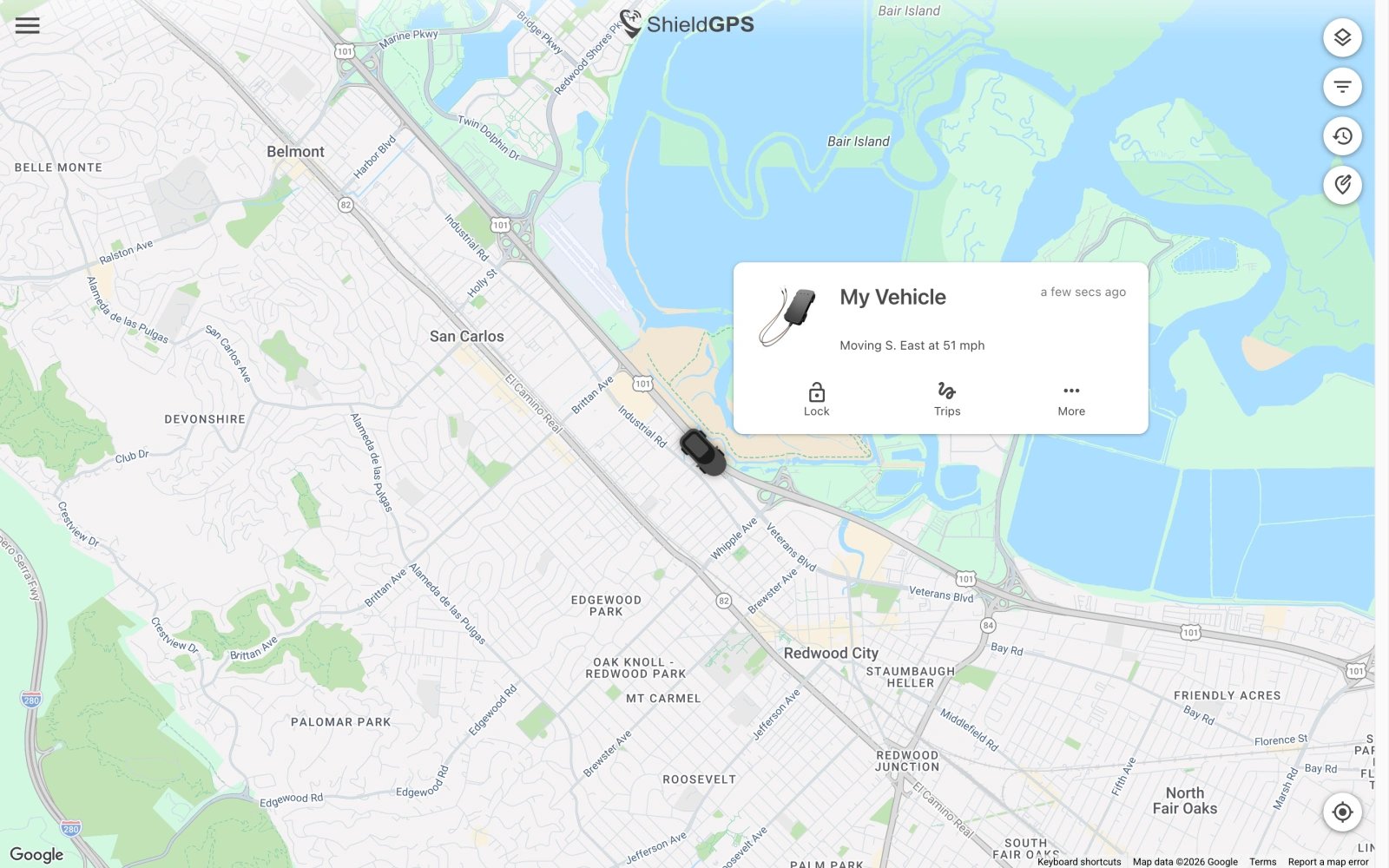
Open the ShieldGPS app on iOS or Android, or visit the web dashboard at [shieldgps.co/dashboard](https://shieldgps.co/dashboard). Navigate to the map screen and tap the name of the tracker you want to follow. The map centres on its current position and refreshes automatically every 10 seconds — no need to pull to refresh or reload the page.
## Map Modes
The default street-map view shows roads, place names, and points of interest — ideal for everyday tracking in urban and suburban areas.
Switch to satellite imagery for a bird's-eye view of the terrain — useful for rural locations, construction sites, or anywhere roads aren't clearly labelled.
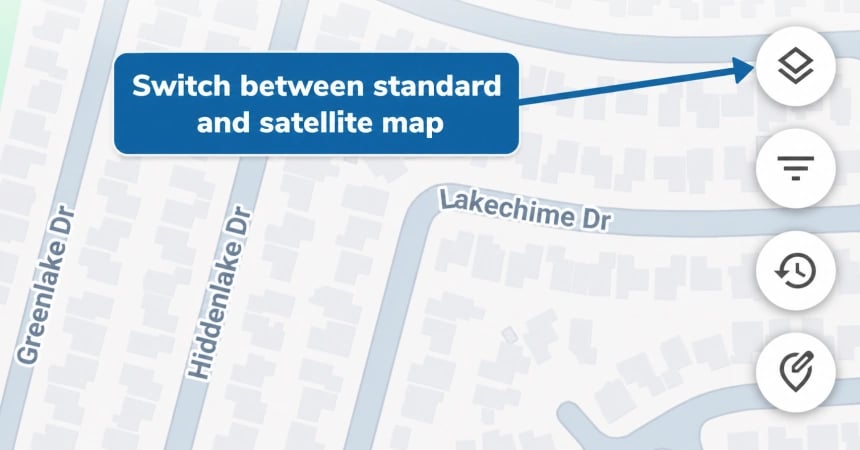
To switch between modes, tap the map-style icon in the top corner of the map screen in the app, or use the layer control on the web dashboard.
## View Your Live Location
Open the ShieldGPS app on iOS or Android, or visit the web dashboard at [shieldgps.co/dashboard](https://shieldgps.co/dashboard). Navigate to the map screen and tap the name of the tracker you want to follow. The map centres on its current position and refreshes automatically every 10 seconds — no need to pull to refresh or reload the page.
## Map Modes
The default street-map view shows roads, place names, and points of interest — ideal for everyday tracking in urban and suburban areas.
Switch to satellite imagery for a bird's-eye view of the terrain — useful for rural locations, construction sites, or anywhere roads aren't clearly labelled.
To switch between modes, tap the map-style icon in the top corner of the map screen in the app, or use the layer control on the web dashboard.
 ## Location Accuracy
ShieldGPS uses state-of-the-art GPS technology to place your tracker's position to within a few metres under normal conditions. The system combines GPS satellite data with 4G LTE cell-tower information to maintain accuracy even when the GPS signal alone is weak.
### What Affects Accuracy
| Condition | Effect on Accuracy |
| ------------------------------------- | ----------------------------------------------------- |
| Open sky (outdoors, clear view above) | Best accuracy — a few metres |
| Urban canyons (tall buildings nearby) | Slightly reduced — signal bounces off structures |
| Underground car parks | Reduced — GPS signals cannot penetrate below ground |
| Multi-storey car parks | May be reduced depending on floor level and structure |
| Dense foliage or indoor environments | May be reduced |
For the most reliable results, position hard-wired or hidden trackers (such as the FMT100 or OB22) where the device has as much exposure to the sky as possible.
## Online and Offline Status
A coloured status indicator appears next to each tracker in your device list and on the map:
* **Green** — The tracker is online and actively sending location updates.
* **Grey** — The tracker has not sent an update recently. This can mean the device is powered off, out of mobile network coverage, or in a location (such as an underground car park) where it cannot connect.
If a tracker shows grey unexpectedly, check that the device is powered on and has network coverage in its current location.
Position accuracy is best when the tracker has a clear view of the sky. If the tracker is brand new, allow a few minutes for it to acquire a GPS fix for the first time.
## Location Accuracy
ShieldGPS uses state-of-the-art GPS technology to place your tracker's position to within a few metres under normal conditions. The system combines GPS satellite data with 4G LTE cell-tower information to maintain accuracy even when the GPS signal alone is weak.
### What Affects Accuracy
| Condition | Effect on Accuracy |
| ------------------------------------- | ----------------------------------------------------- |
| Open sky (outdoors, clear view above) | Best accuracy — a few metres |
| Urban canyons (tall buildings nearby) | Slightly reduced — signal bounces off structures |
| Underground car parks | Reduced — GPS signals cannot penetrate below ground |
| Multi-storey car parks | May be reduced depending on floor level and structure |
| Dense foliage or indoor environments | May be reduced |
For the most reliable results, position hard-wired or hidden trackers (such as the FMT100 or OB22) where the device has as much exposure to the sky as possible.
## Online and Offline Status
A coloured status indicator appears next to each tracker in your device list and on the map:
* **Green** — The tracker is online and actively sending location updates.
* **Grey** — The tracker has not sent an update recently. This can mean the device is powered off, out of mobile network coverage, or in a location (such as an underground car park) where it cannot connect.
If a tracker shows grey unexpectedly, check that the device is powered on and has network coverage in its current location.
Position accuracy is best when the tracker has a clear view of the sky. If the tracker is brand new, allow a few minutes for it to acquire a GPS fix for the first time.